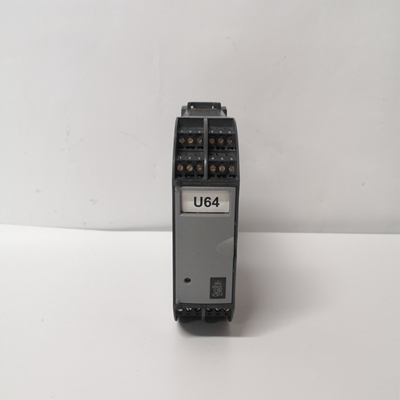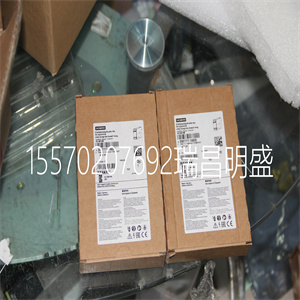


3SK1111
使用以下步骤连接可再充电外部电池单元:
1.交付时,锂离子电池组件未内部连接。遵循
包装箱中随附的数据和安装表中的步骤:
正确连接电池组。
2.将SB822可再充电外部电池单元安装在屏幕上的适当位置
喧闹的铁路。
3.将24V电源连接到包装箱中的连接器上。
4.将24V电源连接到电池单元(X3)
5.确保AC 800M控制器已通电,且电池已发光
PM8xx的前端正在闪烁
6.连接SB822可充电外部电池单元,使用2米(2.2码)
电缆TK821V020。将一端插入电池单元,另一端插入电源
PM8xx处理器单元的外部电池电源插座(请参见上的图2
32页)。
7.确保SB822上的绿色电源指示灯和黄色充电指示灯亮起
被打开。
8.在包含两个CPU的冗余CPU配置中
对于PM861/PM864/PM865/PM891处理器单元,还使用两个SB822电池
每个处理器单元一个。
9.由于电池并联连接
外部电池,从PM8xx上卸下内部电池,以便:
避免减少可用内存和备份时间。
在安装AC 800M控制器之前,请勿连接TK821V020电缆
正常通电并且存储器备份功能已被激活,
B(电池)LED闪烁。如果没有正常电源连接到PM8xx
处理器单元,CPU内存将立即开始消耗电池电量
当连接电缆时
2节I/O装置的安装
3BSE036351-510 A 145
I/O装置的安装
有关安装、拆卸和释放程序的更多信息,请参阅:
I/O装置,请参阅相应的I/O系统文档。
机柜中的安装
下面列出的图是AC 800M控制器、电源和电源的示例
电源单元、表决单元和S800 I/O单元可在内部配置和安装
橱柜:
•146页图49:壁柜-单电源布置
•147页图50:壁柜-双电源(本地/现场)
安排
•148页图51:落地式机柜-装置布置
(冗余PSU)
DIN导轨采用支撑铝型材,以确保刚性。
参见403页的图118。
图中所示的机柜为ABB制造的机柜:
•RE820:壁柜
•RM550:落地柜
机柜安装2节安装
146 3BSE036351-510 A
图49.壁柜-单电源布置
24伏配电
终端
电源断路器SD831
单元
缆绳
管
铝
轮廓
缆绳
膨胀
模块总线
2节机柜内的安装
3BSE036351-510 A 147
图50.壁柜-双电源(本地/现场)布置
电源断路器
单元
SD831
24伏配电
(单位)
(机柜中的单元)
SD831
(现场)
24伏配电
(现场设备)
机柜安装2节安装
148 3BSE036351-510 A
图51落地式机柜(水平单元布置)
投票
单位
SS832断路器
干线
SD832冗余
电源装置
冗余的
权力
供应单位
(场)
设备)
SD832
2节适当通风的安装尺寸
3BSE036351-510 A 149
适当通风的安装尺寸
为了保持通过AC 800M控制器单元的足够冷却气流
在装置上方50毫米(2英寸)和下方25毫米(1英寸)范围内不得有障碍物,
如149页的图52所示。请注意,CPU和通信
接口必须安装在水平DIN导轨上。
图52.通风要求-小安装尺寸
>261毫米
(10.3英寸)
>50毫米(2.0英寸)
>50毫米(2.0英寸)
>25毫米(1.0英寸)
>25毫米(1.0英寸)
无障碍区域
无障碍区域
正确通风的安装尺寸2节:安装
150 3BSE036351-510 A
3BSE036351-510 A 151
3节配置
一般资料
使用工程工具Control Builder,可以配置硬件(I/O
以及通信单元),并用控制语言制作应用程序
根据IEC 61131-3,程序可以离线编译和运行,以帮助:
在将应用程序终下载到控制器之前进行过程模拟。这个
Control Builder提供了一组选项,每个选项都有自己的一组属性。仅仅
选择接近系统要求的选项。
•Control Builder文档–用于配置信息
•控制软件文档–提供可用功能。
控件生成器联机帮助提供了详细的分步信息
为AC 800M控制器创建应用程序
3SK1111
3SK1111
Use the following procedure to connect the rechargeable external battery unit: 1. At delivery the Li-Ion battery package is not connected internally. Follow the steps in the Data and installation sheet, which is enclosed in the packing box, to connect the battery package properly. 2. Mount the SB822 rechargeable external battery unit at a suitable position on the DIN-rail. 3. Connect the 24V supply to the connector enclosed in the packing box. 4. Connect the 24V supply to the battery unit (X3) 5. Make sure that the AC 800M controller is powered and that the battery LED in the front of PM8xx is flashing 6. Connect the SB822 rechargeable external battery unit, use the 2 m (2.2 yd) cable TK821V020. Plug one end into the battery unit and the other into the external battery supply socket of the PM8xx processor unit (see Figure 2 on page 32). 7. Make sure that the green Power LED and the yellow Charge LED on SB822 are turned on. 8. In redundant CPU configuration containing two PM861/PM864/PM865/PM891processor units, use also two SB822 battery units, one for each processor unit. 9. Due to the batteries being connected in parallel, it is necessary, when using the external battery, to remove the internal battery from the PM8xx in order to avoid reducing available memory back-up time. Do not connect the TK821V020 cable until the AC 800M Controller has been powered-up normally and the memory back-up function has been activated, that is, the B(attery) LED flashes. If no normal power supply is connected to the PM8xx processor unit, the CPU memory will immediately start to consume battery power when the cable is connected Section 2 Installation Installation of I/O Units 3BSE036351-510 A 145 Installation of I/O Units For further information regarding mounting, removing and releasing procedures for I/O Units, refer to the appropriate I/O system documentation. Installation in Cabinets The figures listed below are examples of how the AC 800M Controllers, Power Supply units, Voting units and S800 I/O units can be configured and mounted within cabinets: • Figure 49 on page 146: Wall Cabinet – Single Power Supply Arrangement • Figure 50 on page 147: Wall Cabinet – Dual Power Supply (Local/Field) Arrangement • Figure 51 on page 148: Floor Mounted Cabinet – Unit Arrangement (Redundant PSU) The DIN-rails are using the supporting Al-profile to ensure rigidness. See Figure 118 on page 403. The cabinets shown in the figures are ABB manufactured cabinets: • RE820: Wall Cabinet • RM550: Floor Cabinet Installation in Cabinets Section 2 Installation 146 3BSE036351-510 A Figure 49. Wall Cabinet – Single Power Supply Arrangement 24 V Distribution Terminals Mains Breaker SD831 Unit Cable Duct Aluminum Profile Cable Expansion ModuleBus Section 2 Installation Installation in Cabinets 3BSE036351-510 A 147 Figure 50. Wall Cabinet – Dual Power Supply (Local/Field) Arrangement Mains Breaker Unit SD831 24 V Distribution (Units) (Units in Cabinet) SD831 (Field) 24 V Distribution (Field Equipment) Installation in Cabinets Section 2 Installation 148 3BSE036351-510 A Figure 51. Floor Mounted Cabinet (Horizontal Unit Arrangement) Voting Units SS832 Breakers Mains SD832 Redundant Power Supply Units Redundant Power Supply Units (Field Equipment) SD832 Section 2 Installation Mounting Dimensions for Proper Ventilation 3BSE036351-510 A 149 Mounting Dimensions for Proper Ventilation To maintain adequate cooling airflow through the AC 800M Controller units, there must be no obstruction within 50 mm (2 in) above and 25 mm (1 in) below the units, as shown in Figure 52 on page 149. Note that the CPU and Communication Interfaces must be mounted on a horizontal DIN-rail. Figure 52. Ventilation Requirements – Minimum Mounting Dimensions >261 mm (10.3 in) >50 mm (2.0 in) >50 mm (2.0 in) >25 mm (1.0 in) >25 mm (1.0 in) Unobstructed areas Unobstructed areas Mounting Dimensions for Proper Ventilation Section 2 Installation 150 3BSE036351-510 A 3BSE036351-510 A 151 Section 3 Configuration General Information Using the engineering tool Control Builder, it is possible to configure hardware (I/O and communication units) and make application programs with control languages according to IEC 61131-3. Programs can be compiled and run off-line as an aid to process simulation before finally downloading an application to the controller. The Control Builder offers a set of options, each with its own set of properties. Simply select the option that is closest to system requirements. • Control Builder documentation – for configuration information • Control Software documentation – for available functionality. Control Builder Online Help provides detailed step-by-step information when creating an application for the AC 800M Controller
Copyright ©2019-2022 瑞昌明盛自动化设备有限公司 版权所有 赣ICP备2021006016号