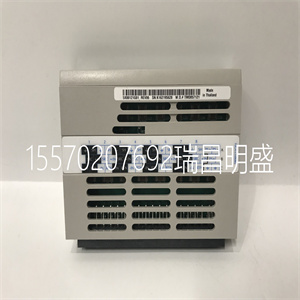


5X00300G01
4.参数配置
当驱动器处于停止、运行或报警状态时
在该状态下,按MENU/ESC可进入配置状态,。
配置状态可以在三级菜单中显示,
它们是:参数组→参数→参数
价值按可进入子菜单
输入/数据。在参数值菜单中,按
输入/数据以保存设置,然后按
MENU/ESC退出菜单。
4.2.5面板操作
1.查看参数
要查看参数,请按XX键。参数
可以显示的内容不同,具体取决于
运行状态(停止、运行)和
F8.01~F8.03)
2.参数设置
让我们看一个如何设置参数的示例。
假设您希望将F3.13的设置从
5.00Hz至6.50Hz。
1.按MENU/ESC键进入编程状态,
LED显示F0。
2.新闻界▲ 按键直到显示“F3”。
3.按ENTER/DATA键,您将看到F3.00。按
▲ 按键直到显示“F3.13”。
4.按ENTER/DATA键,您将看到“05.00”。
5.按XX键,将光标移至数字“5”。
按▲ 键一次,将其更改为“6”。按XX键,以
将光标移动到下一个数字(从左到右),然后
按▲ 按键,直到出现图“5”。
6.按ENTER/DATA键保存修改和
您将看到下一个参数F3.14。
7.按MENU/ESC键退出编程状态。
第4章操作说明41
EV2000系列通用变速驱动用户手册
进入菜单级别3
F3.00
进入菜单级别1
保存输入菜单级别2
50.00 F0 F3
05.00 F3.13.06.50
XX
F3.14、F3.13、F3 50.00
进入
资料
不保存
菜单
ESC
菜单
ESC
F3
菜单
ESC
进入
资料
进入
资料
菜单
ESC
菜单
ESC
图4-7参数设置
在菜单级别3中,参数的设置不能为
如果参数的任何数字都不闪烁,则更改。这个
可能的原因是:
1) 该参数的设置不能改变,
例如实际检测到的参数或记录的参数
参数;
2) 无法更改此参数的设置
当驱动器正在运行时,只能进行更改
当驱动器停止时;
3) 参数受保护,即,如果设置了FP.01
设置为1或2,所有参数的设置不能为
更改以避免错误操作。如果你真的想
更改设置,首先将FP.01设置为0。
3.微调参考频率
示例:将参考频率从
50.00Hz至48.00Hz。
按一下▼ 直接按键,而不考虑电流
显示,将显示当前频率设置,并且
降低0.01Hz。按住该键将加快
减少按▲ 通过以下方式增加频率的键:
0.01Hz。
4.改变控制模式:
将F9.07设置为“x1x”或“x2x”,并允许控制模式
改变。如果F9.07设置为“x1x”,则控制模式可以
在停止状态下改变;如果设置为“x2x”,则控件
运行和停止模式均可更改
状态
面板/远程键可用于选择控制
运行状态和停止状态下的模式。
按此键,您可以在面板控制之间切换
模式、终端控制模式和串行端口模式。
选择面板控制模式时,旁边的LED
面板/遥控器将打开;当终端控制
选择模式时,LED将熄灭;当串行端口
选择控制模式时,LED将闪烁。
5.启动和停止驱动器
在面板控制模式下,按运行键启动
驱动并按停止/复位键停止。转换
控制模式,请参考上一段。
6.慢跑
当驱动器处于停止状态时,按JOG键并
按住它,面板将显示开始频率,然后
频率将上升到5Hz。继续按键,
驱动器将以5Hz的频率微动。
7.设置用户密码
进入菜单级别3,并将FP.00设置为4位数字:
这是您的密码。参见图4-7中的面板操作。
8.如何锁定面板:
首先,将F9.07的百分位设置为非零
figure,然后按MENU/ESC并输入/DATA at
同时。
+
XX
F0 F9 50.00 F9.00
0020 0020 F9.07
0120 F9.08 F9-50.00
50
进入
资料
进入
资料
进入
资料
菜单
ESC
菜单
ESC
进入
资料
菜单
ESC
图4-8锁定面板
9.如何解锁面板
在停止或运行状态下,按ENTER/DATA键,
然后按▼ 三次。注意,操作
不会更改F9.07的值。
注:
即使F9.07的百位未设置为零
(面板锁定功能已启用),面板处于
每次驱动器通电时的解锁状态。
4.3启动
4.3.1启动前检查
请按照第节的要求连接驱动器
5X00300G01
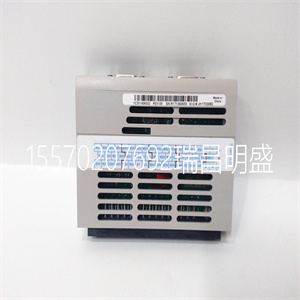
5X00300G01
4. Parameter configuration
When the drive is in stopping, operating or alarming
state, pressing MENU/ESC can enter configuring status,.
Configuring status can be displayed in 3-level menu,
they are: parameter group→pparameter→parameter
value. You can enter the sub-menus by pressing
ENTER/DATA. In parameter value menu, press
ENTER/DATA to save the settings, and press
MENU/ESC to exit the menu.
4.2.5 Panel Operation
1. Viewing Parameters
To view the parameters, press XX key. The parameters
that can be displayed are different depending on the
operation state (STOP, operating) and the settings of
F8.01~F8.03)
2. Parameter Setup
Let’s look at an example of how to set parameters.
Suppose you want to change the setting of F3.13 from
5.00Hz to 6.50Hz.
1. Press MENU/ESC key to enter programming state,
the LED displays F0.
2. Press ▲ key until “F3” is displayed.
3. Press ENTER/DATA key, you will see F3.00. Press
▲ key until “F3.13” is displayed.
4. Press ENTER/DATA key, you will see “05.00”.
5. Press XXkey, to move the cursor to the digit “5”.
Press ▲ key once, to change it to “6”. Press XXkey, to
move the cursor to the next digit (from left to right) and
press ▲ key until the figure “5” appear.
6. Press ENTER/DATA key to save the modification and
you will see the next parameter F3.14.
7. Press MENU/ESC key to exit the programming state.
Chapter 4 Operation Instructions 41
EV2000 Series Universal Variable Speed Drive User Manual
enter menu level 3
F3.00
enter menu level 1
Save enter menu level 2
50.00 F0 F3
05.00 F3.13 . 06.50
XX
F3.14 F3.13 F3 50.00
ENTER
DATA
Not save
MENU
ESC
MENU
ESC
F3
MENU
ESC
ENTER
DATA
ENTER
DATA
MENU
ESC
MENU
ESC
Fig. 4-7 Setting the parameters
In menu level 3, the settings of the parameter cannot be
changed if none digit of the parameter is flashing. The
possible reasons are:
1) The settings of this parameter cannot be changed,
such as the actual detected parameters or recorded
parameters;
2) The settings of this parameter cannot be changed
when the drive is operating, and can only be changed
when the drive stops;
3) The parameters are protected, that is, if FP.01 is set
to 1 or 2, the settings of all the parameters cannot be
changed to avoid wrong operation. If you really want to
change the settings, first set FP.01 to 0.
3. Fine Tuning reference frequency
Example: changing the reference frequency from
50.00Hz to 48.00Hz.
Just press ▼ key directly regardless of the current
display, the present frequency setting will appear and
decrease 0.01Hz. Holding the key will speed up the
decrease. Press ▲ key to increase the frequency by
0.01Hz.
4. Changing the control mode:
Set F9.07 to “x1x” or “x2x”, and control mode is allowed
changing. If F9.07 is set to “x1x”, the control mode can
be changed at STOP state; if set at “x2x”, the control
modes can be changed in both operation and STOP
state.
PANEL/REMOTE key can be used to select the control
mode both in operating status and stopping status.
Press this key and you can switch among panel control
mode, terminal control mode and serial port mode.
When panel control mode is selected, the LED beside
the PANEL/REMOTE will turn on; when terminal control
mode is selected, the LED will turn off; when serial port
control mode is selected, the LED will blink.
5. Starting and Stopping the drive
Under panel control mode, press RUN key to start the
drive and press STOP/RESET key to stop it. To switch
the control mode, please refer to the above paragraph.
6. Jog
When the drive is in STOP state, press JOG key and
hold it, the panel will display start frequency and then
the frequency will ramp to 5Hz. Keep pressing the key,
the drive will jog at 5Hz.
7. Setting user’s password
Enter menu level 3 and set FP.00 at a 4-digit figure as
your password. See the panel operation in Figure 4-7.
8. How to lock the panel:
First set the hundred’s place of F9.07 at a non-zero
figure, and then press MENU/ESC and ENTER/DATA at
the same time.
+
XX
F0 F9 50.00 F9.00
0020 0020 F9.07
0120 F9.08 F9- 50.00
50.00
ENTER
DATA
ENTER
DATA
ENTER
DATA
MENU
ESC
MENU
ESC
ENTER
DATA
MENU
ESC
Fig. 4-8 Locking panel
9. How to unlock the panel
At stopping or operating state, press ENTER/DATA key,
and then press ▼ three times. Note that the operation
will not change the value of F9.07.
Note:
Even if the hundred’s place of F9.07 is not set to zero
(panel locking function is enabled), the panel is in
unlocking status every time the drive is powered on.
4.3 Start-up
4.3.1 Checking before Start-up
Please wire the drive according to Sect
Copyright ©2019-2022 瑞昌明盛自动化设备有限公司 版权所有 赣ICP备2021006016号