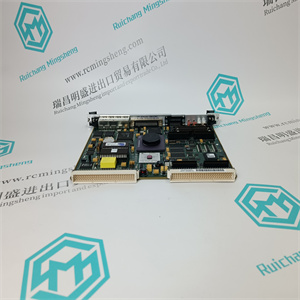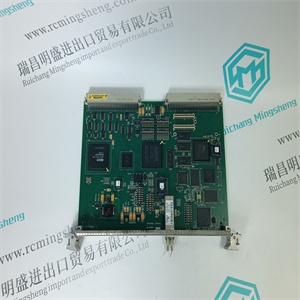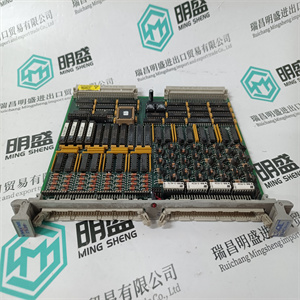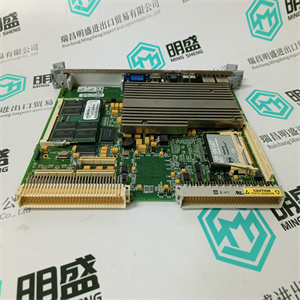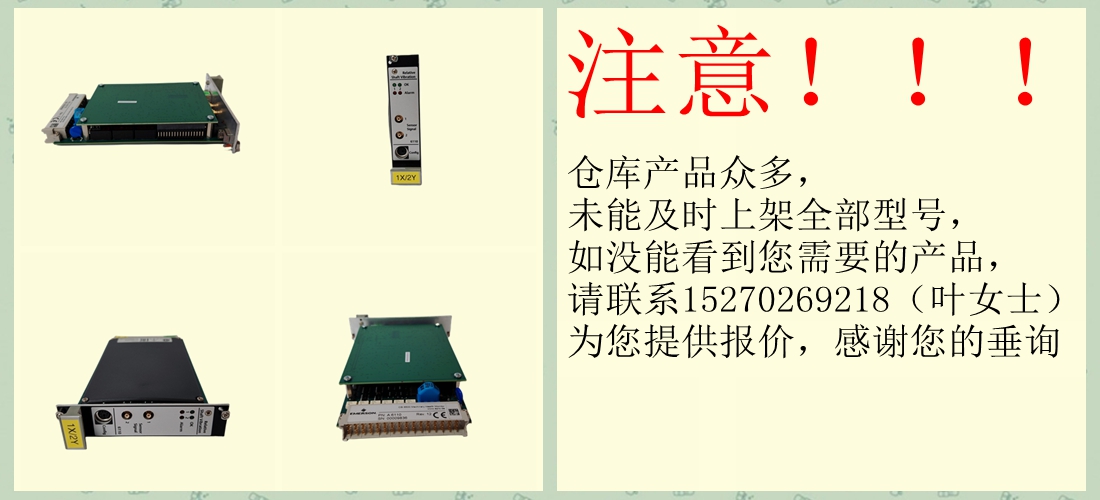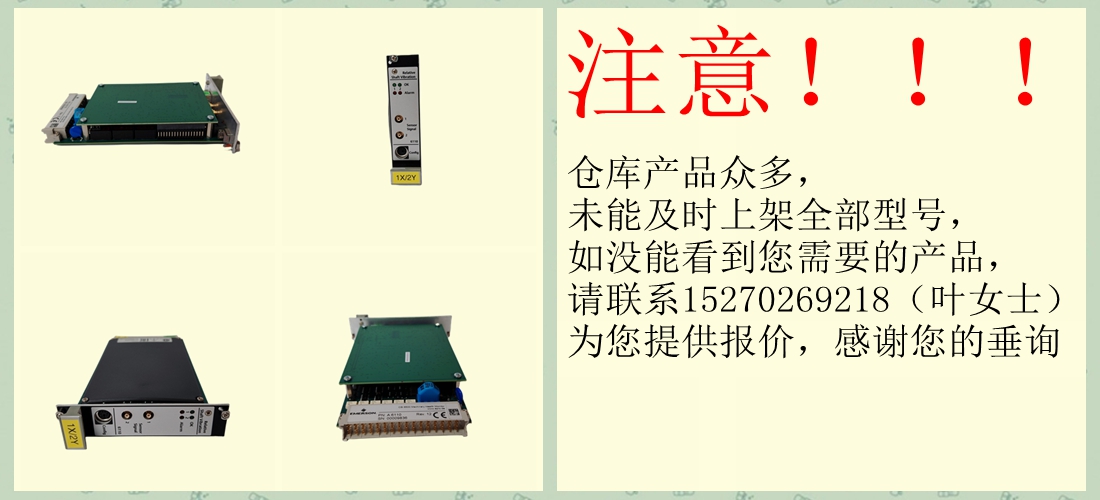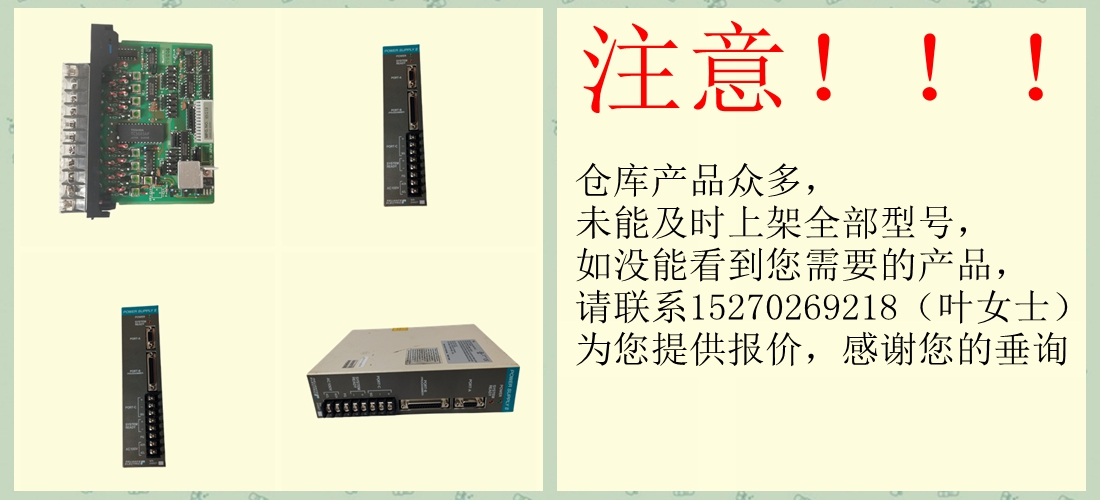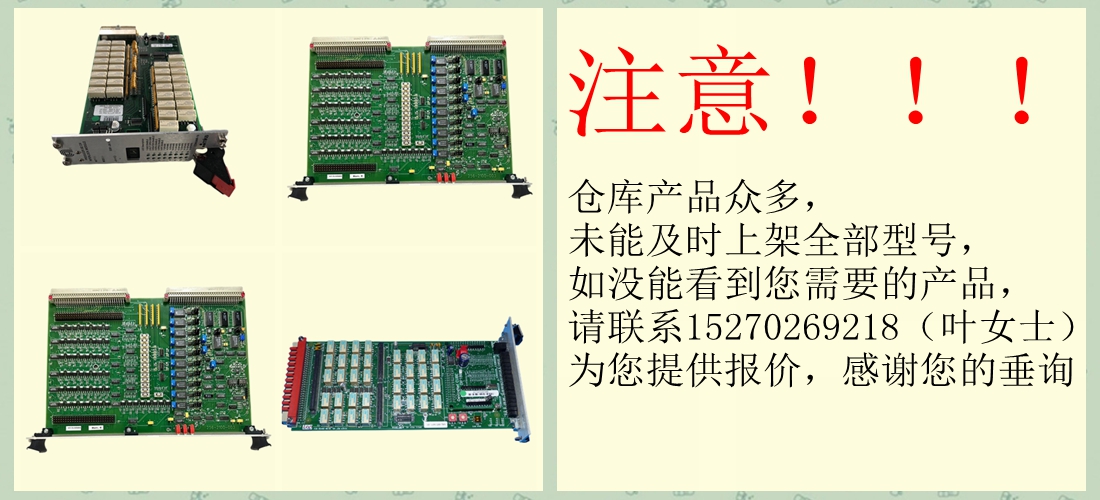



FDC86-CONT 57770163H FDC86CONT 控制器模块 ABB
称重传感器组合
–一卷(称重传感器A和B)
–两个辊(辊1连接到A和B,辊2连接到C和D)或
-分段卷
•增益调度(为两个不同的web路径切换包裹增益)。
–一卷、两卷(仅卷1)和分段卷。
3.对象类型,见3.12.3节。
•标准辊(辊1、称重传感器A和B或辊2、称重传感器C和D)
•单侧测量(辊1、称重传感器A或B和辊2、称重传感器C或D)
•分段卷
多可处理连接到三个PFEA113的12个称重传感器。称重传感器输入
必须连接到PFEA113,如下所示:
-一个输入,称重传感器连接到
-两个输入,称重传感器连接到A和B
-三个输入,称重传感器连接到A、B和C
-四个输入,称重传感器连接到A、B、C和D
4.给定卷筒纸张力下的期望输出数据
5.通信数据,见3.13节。
3.2安全说明
在开始任何操作之前,请阅读并遵循1章介绍中所述的安全说明
调试工作。然而,如果当地法规更严格,则应优先考虑。
3.3必要的设备和文件
需要以下项目:
•电缆图
•服务工具
张力电子PFEA113,用户手册
三章调试
3-2 3 BSE029382R0101版本C
3.4使用面板按钮
3.4.1导航和确认
3.4.2改变数值和参数
•X表示数值。
•Z表示可以从列表中选择参数。
要更改数值X或参数Z,请按。数值或参数为
然后放在方括号[XXXXXX]或[ZZ]内,表示可以更改。
如果是“Z”参数,请使用和在列表中上移或下移。当所需值
显示按钮上显示。按下时,将保存新参数值,并
值周围的括号消失。
如果您已按下,使参数被括号括起来,则可以取消
按进入模式。使用和进行的选择将不会被存储。如果
按下时,旧值不带括号显示。
若要更改数值,请按,使值周围出现括号。那么一个
数字可以使用和进行更改。当一个数字具有所需值时,按,然后
二个数字可以使用和进行更改。在后一个数字后按
设置后,新值将保存并显示,不带括号。
输入数值时使用表示返回上一个数字。按
足够的次数后,您将离开进入模式,旧值将为
不带括号显示。
显示按钮如何使用
返回上一菜单。有时
必须反复按下此按钮
返回所需菜单。
在列表中升级。
在列表中逐步下降。
进入下一主菜单。
OK(确认)按钮。证实
选择或参数设置。
集合语言
[英文]
电源状态
设置为10V
XXXXXX N
名义负载
ZZ kN,ZZ磅
设置为10V
[XXXXXX]N
额定载荷
[ZZ kN,ZZ lbs]
张力电子PFEA113,用户手册
3.5节菜单概述
3BSE029382R0101版本C 3-3
3.5菜单概述
操作员菜单、配置和服务菜单
快速安装
见3.8
张力辊1
N
张力A
N
张力B
N
展示菜单
见3.12.1
对象类型3)
见3.12.3
设定标称负载
见3.12.4
杂项菜单,见3.12.11
服务菜单
见3.12.12
零集
见3.12.5
张力差A-B
N
AO 1-AO 6
N
SetWrapGain
见3.12.6
>5秒
AO 1-AO 6
见3.12.7
做1-做4
见3.12.8
错误和
警告信息
张力辊2
N
张力C
N
张力D
N
张力差C-D
N
见4.7节。
按下可通过两种方式进行快速设置
这取决于如何设置缠绕增益。
完成
设置
系统定义
见3.12.2
选择标准辊、单面测量或
分段轧辊应用的输入数量。
语言、单位、幅宽1)和所需
在演示文稿中设置小数位数
菜单
选择称重传感器组合并设置分段
滚动比例因子(SRSF)2)和增益调度
在这个菜单中。
检查称重传感器名称上的标称负载
盘子使用或从列表中选择标称负载
.确认。
零点设置用于补偿称重传感器零点
信号和皮重。
缠绕增益可以通过使用悬挂来确定
重量或通过计算。
仅选择Off、U(电压)、I(电流)或Profibus。
连接信号并设置滤波器设置,高和低
张力、输出和限制。
设置液位检测器(4)和“状态正常”
AI 1-AI 2
见3.12.9
用于连接多个电子设备。
迪
见3.12.10
选择关闭、零设置或增益调度。
该菜单用于设置profibus参数或
将出厂设置为默认值。
显示PFEA113软件版本。
查看的大负载和当前偏移设置
称重传感器A、B、C和D。
重置大负载内存和偏移量。
称重传感器信号的模拟
FDC86-CONT 57770163H FDC86CONT 控制器模块 ABB
FDC86-CONT 57770163H FDC86CONT 控制器模块 ABB
Load cell combination
– One roll (load cells A and B)
– Two rolls (Roll 1 connected to A and B, Roll 2 connected to C and D) or
– Segmented roll
• Gain scheduling (switching wrap gain for two different web paths).
– One roll, Two rolls (only Roll 1) and Segmented roll.
3. Object type, see Section 3.12.3.
• Standard roll (Roll 1, load cells A and B or Roll 2, load cells C and D)
• Single side measurement (Roll 1, load cell A or B and Roll 2, load cell C or D)
• Segmented roll
Up to 12 load cells connected to max. three PFEA113 can be handled. The load cell inputs
must be connected to PFEA113 as follows:
- One input, load cell connected to A
- Two inputs, load cells connected to A and B
- Three inputs, load cells connected to A, B and C
- Four inputs, load cells connected to A, B, C and D
4. Desired output data at given web tension
5. Communication data, see Section 3.13.
3.2 Safety Instructions
Read and follow the safety instructions described in Chapter 1 Introduction, before starting any
commissioning work. However, local statutory regulations, if stricter, are to take precedence.
3.3 Necessary Equipment and Documentation
The following items are required:
• Cable diagram
• Service tools
Tension Electronics PFEA113, User Manual
Chapter 3 Commissioning
3-2 3BSE029382R0101 Rev C
3.4 Using the Panel Buttons
3.4.1 Navigating and Confirming
3.4.2 Changing Numerical Values and Parameters
• X indicates a numerical value.
• Z indicates that a parameter can be chosen from a list.
To change a numerical value, X, or parameter, Z, press . The numerical value or parameter is
then placed within brackets [XXXXXX] or [ZZ] to show that it can be changed.
If it is a “Z” parameter, use and to move up or down in the list. When the desired value
is shown on the display press . When is pressed the new parameter value is saved and
the brackets around the value disappear.
If you have pressed so that the parameter is enclosed by brackets, you can cancel the
entering mode by pressing . The selections made with and will not be stored. If
is pressed the old value is displayed without brackets.
To change a numerical value, press so that brackets appear around the value. Then the first
digit can be changed with and . When the first digit has the desired value press , then
the second digit can be changed with and . When pressing after the last digit has
been set, the new value is saved and displayed without brackets.
Using when entering a numerical value means returning to the previous digit. By pressing
a sufficient number of times you will leave the entering mode and the old value will be
displayed without brackets.
Display Button How to use it
Returns to previous menu. Sometimes
this button must be pressed repeatedly
to get back to the desired menu.
Steps up in a list.
Steps down in a list.
Steps to next main menu.
OK (acknowledgment) button. Confirms
a selection or a parameter setting.
Set language
[English]
Power Status
SetTensionAt10V
XXXXXX N
NominalLoad
ZZ kN ZZ lbs
SetTensionAt10V
[XXXXXX] N
Nominal load
[ZZ kN ZZ lbs]
Tension Electronics PFEA113, User Manual
Section 3.5 Menu Overview
3BSE029382R0101 Rev C 3-3
3.5 Menu Overview
Operator Menus Configuration and Service Menus
FastSetUp
See 3.8
TensionRoll 1
N
Tension A
N
Tension B
N
PresentationMenu
See 3.12.1
ObjectType 3)
See 3.12.3
SetNominalLoad
See 3.12.4
MiscellaneousMenu See 3.12.11
ServiceMenu
See 3.12.12
ZeroSet
See 3.12.5
TensionDiff A-B
N
AO 1 - AO 6
N
SetWrapGain
See 3.12.6
> 5 s
AO 1- AO 6
See 3.12.7
DO 1 - DO 4
See 3.12.8
Error and
warning messages
TensionRoll 2
N
Tension C
N
Tension D
N
TensionDiff C-D
N
See Section 4.7.
Press The fast setup can be made in two ways
depending on how the wrap gain is set.
Complete
setup
SystemDefinition
See 3.12.2
Select Standard roll, Single side measurement or
number of inputs for segmented roll applications.
Language, Unit, Web Width 1) and desired
number of decimals are set in the presentation
menu.
Select load cell combination and set Segmented
Roll Scale factor (SRSF) 2) and Gain scheduling
in this menu.
Check the nominal load on the load cell name
plate. Select nominal load from the list with or
. Confirm with .
Zero set is used to compensate for load cell zero
signal and tare weight.
Wrap gain can be determined by using hanging
weights or by calculating.
Select Off, U (Voltage), I (Current) or Profibus only.
Connect signals and set filter settings, high and low
Tension, Output and Limit.
Set level detectors (4) and “Status OK”
AI 1 - AI 2
See 3.12.9
For connection of multiple electronics.
DI
See 3.12.10
Select Off, Zero set or Gain scheduling.
This menu is used to set profibus parameters or to
set factory default.
Show PFEA113 software version.
View maximum load and current offset settings for
load cell A, B, C and D.
Reset maximum load memory and offset.
Simulation of load cell signals
FDC86-CONT 57770163H FDC86CONT 控制器模块 ABB